Fleet Tablet Touchscreen Not Responding? – Causes and Hardware Solutions for Vehicle Deployments
The driver taps the screen. Nothing happens. Taps again, harder. Still nothing. It's not the app — the touchscreen itself has stopped responding. In a vehicle cab, this isn't a minor annoyance. It means ELD logs can't be updated, dispatch messages can't be acknowledged, and navigation can't be adjusted while driving. Here's what causes touchscreen failures in fleet deployments — and what hardware choices prevent them.
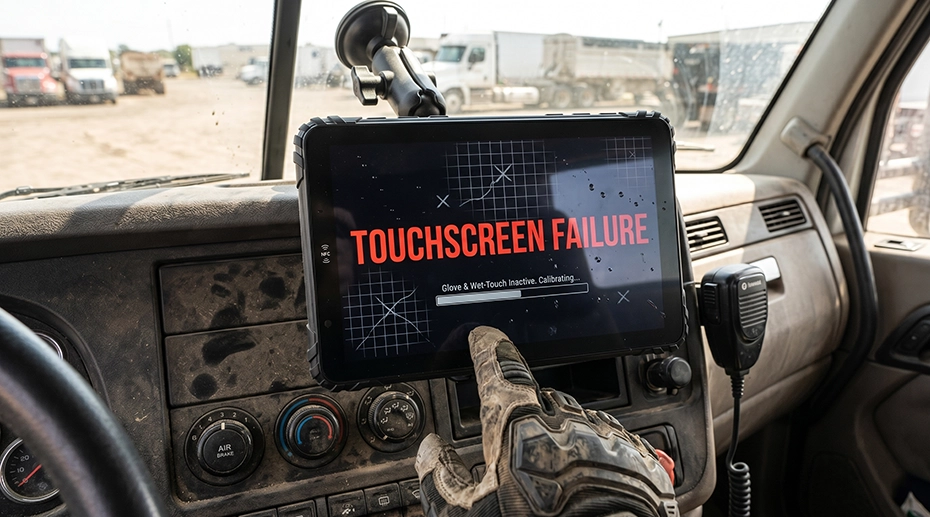
Table of Contents
Field Experience
Across fleet deployments, touchscreen failures in vehicle environments consistently trace back to a few physical causes:
Gloved hands not registering on unoptimized screens
Screen contamination from diesel, dust, and industrial residues
Optical bonding degradation from thermal cycling
About the Author
TOPICON Fleet Deployment Team
Hardware engineering specialists supporting system integrators with touchscreen performance optimization, display selection for vehicle environments, and fleet tablet usability across commercial vehicles, heavy equipment, and field service applications.
Five Reasons Fleet Tablet Touchscreens Stop Responding
When a vehicle-mounted tablet stops responding to touch, the instinct is to reboot the device or blame the app. But touchscreen failures are almost always physical-layer problems — the capacitive sensor can't detect the user's touch because something is interfering with the electrostatic field. For any in-vehicle computing platform deployed in a commercial cab, understanding these root causes is essential for reliable operation. Here are the five most common causes in fleet environments, how to diagnose each, and what hardware specifications prevent them.
Moisture and Humidity: When Water on the Screen Kills Touch Response
What's Actually Happening
Projected capacitive touchscreens (PCAP) — the type used in virtually all modern tablets — work by measuring changes in an electrostatic field created by a grid of transparent electrodes on the screen surface. When a finger touches the screen, it distorts this field. The touch controller measures the distortion at each electrode intersection and triangulates the touch location.
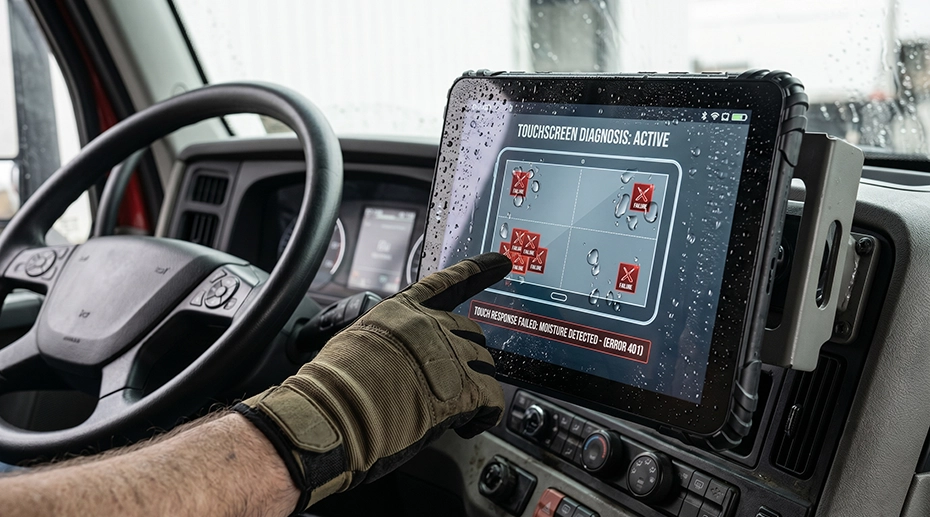
Water is electrically conductive. When water droplets sit on the screen surface, they create their own capacitive coupling with the electrode grid — producing false touch signals or, worse, desensitizing the grid so real finger touches are lost in the noise. A driver climbing into the cab on a rainy day, hands wet from the steering wheel, touches the screen and gets no response — because the moisture layer on the screen is already saturating the capacitive sensor.
High humidity without visible water droplets causes a related problem: condensation forms as a microscopic film on the screen surface, particularly when a cold vehicle warms up and cabin humidity condenses on the coldest surface — which is often the tablet screen. This film is invisible but enough to interfere with capacitive sensing.
Hardware Solutions
Wet-touch optimized touch controller firmware: The touch controller can be tuned to reject water-induced signals while maintaining sensitivity to finger touches. This is a firmware-level feature, not a hardware change — but it must be specified at the device procurement stage. Fleet-grade tablets designed for wet and outdoor environments ship with wet-touch tuning from the factory.
Hydrophobic oleophobic screen coating: A factory-applied coating causes water to bead up and roll off rather than spreading into a conductive film. This is standard on IP67-rated devices but degrades over time with abrasion — check with the manufacturer on coating durability.
Glove mode with moisture tolerance: Touch controllers that support gloved operation typically use higher gain settings — which also improves performance in damp conditions. The same sensitivity boost that detects a finger through a leather glove helps the controller distinguish a real finger from a water droplet.
2. Gloved Hands: Why Work Gloves Don't Register on Standard Touchscreens
What's Actually Happening
A capacitive touchscreen detects a finger because human skin is conductive — it creates a measurable capacitive coupling with the electrode grid. Most work gloves are electrical insulators: leather, nitrile, rubber, and thick synthetic fabrics block the capacitive signal. When a driver wearing gloves taps the screen, the touch controller sees essentially no change in the electrostatic field.
This is not a failure of the touchscreen — it's a mismatch between the touch technology and the operating environment. Fleet drivers, forklift operators, construction workers, and field service technicians all wear gloves as standard PPE. If the tablet can't be operated with gloves on, the driver must remove a glove every time they interact with the device — which means they simply won't interact with it as often, and compliance tasks (like ELD status updates) will be deferred or skipped.
Hardware Solutions
Glove-compatible touch controller with adjustable sensitivity: The touch controller's gain can be increased to detect the weaker capacitive coupling of a finger through glove material. This is a factory configuration — it cannot be adjusted by the end user or through software updates. Industrial-grade tablets built for field operations typically ship with glove mode enabled.
Passive stylus as a mechanical workaround: A conductive-tip stylus works on any capacitive screen regardless of glove compatibility. For deployments where gloves are mandatory and glove-mode hardware is not available, providing a stylus tethered to the mount is a low-cost solution — but it adds a physical object that can be lost or damaged.
Specify the glove type during procurement: Not all glove modes are equal. A touch controller tuned for thin nitrile gloves may not work with thick leather work gloves. Test the actual glove type used by your drivers against the tablet model before committing to a fleet-wide purchase. Some manufacturers can adjust the touch controller's sensitivity profile for specific glove types on OEM orders →
3. Screen Contamination: Diesel, Dust, and Industrial Residue
What's Actually Happening
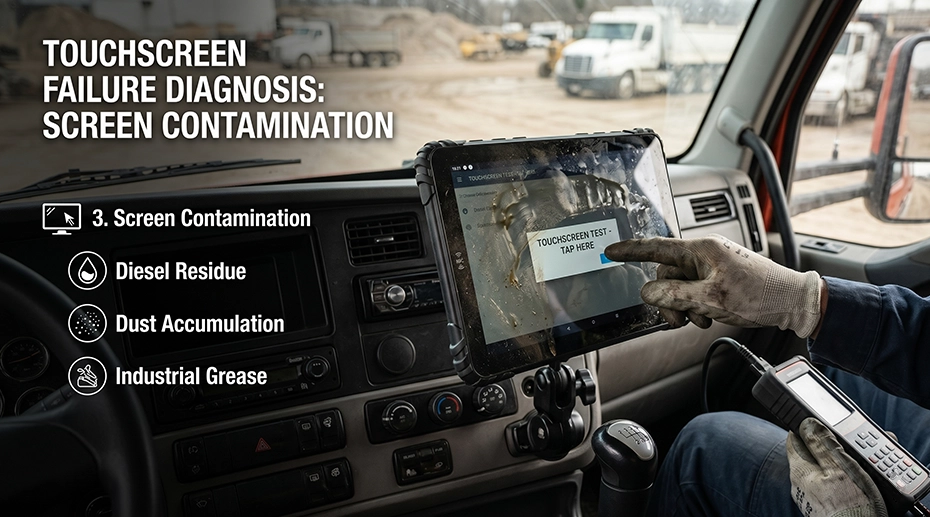
Vehicle cabs and industrial environments expose tablets to airborne contaminants that consumer devices never encounter. Diesel particulate, hydraulic oil mist, concrete dust, and agricultural chemical residues settle on the screen surface. Over hours of operation, these form a film that interferes with capacitive sensing in two ways: it creates a dielectric barrier between finger and electrode, and — if the contaminant is conductive — it generates its own capacitive signal.
The most insidious version of this problem: diesel exhaust particulate mixed with humidity forms a slightly conductive sludge. The touch controller detects this as a continuous, low-level touch — and ignores real finger touches as noise. The driver sees a screen that's unresponsive in some areas and erratic in others, with no visible explanation.
Hardware and Maintenance Solutions
IP67-rated sealed front panel: The touch sensor and display are bonded behind a continuous glass front with no bezel gaps. Contaminants can't penetrate beneath the glass surface. This is standard on rugged tablets; consumer devices with air-gapped displays allow contaminants to accumulate between the touch layer and the LCD.
Regular cleaning protocol: Clean screens with a microfiber cloth and isopropyl alcohol at each vehicle service interval. Do not use glass cleaner containing ammonia — it degrades oleophobic coatings. For tablets deployed in fleet management operations, add screen cleaning to the existing vehicle maintenance checklist.
Anti-smudge coating specification: Factory-applied anti-smudge (oleophobic) coatings reduce the adhesion of oils and particulates. These coatings wear over time — expect 2-3 years of effective performance in daily-use fleet environments before recoating or screen replacement is needed.
4. Optical Bonding Degradation: When the Display Layers Separate
What's Actually Happening
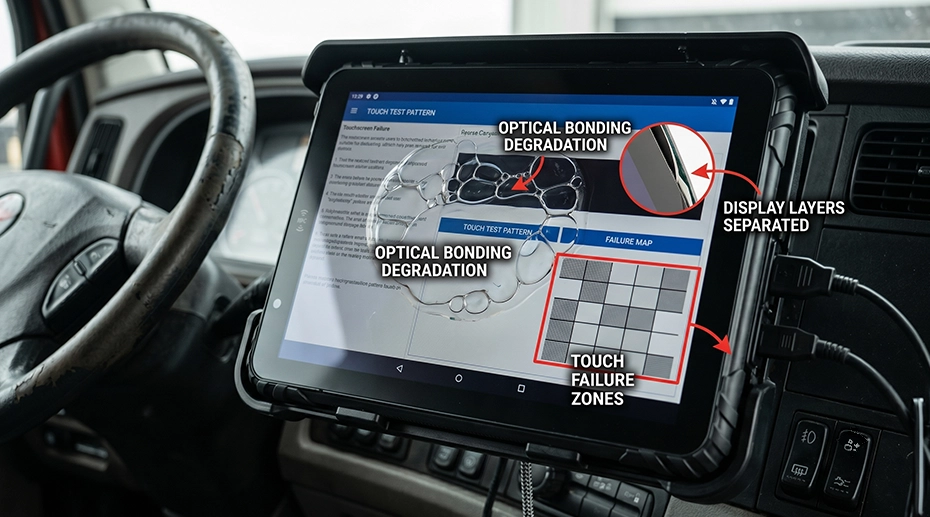
A tablet display consists of multiple layers: the LCD panel, the touch sensor, and the cover glass. These layers are laminated together — either with an air gap (cheaper) or with optical bonding (a transparent adhesive that fills the gap completely). Optical bonding improves sunlight readability by eliminating internal reflections at each air-glass interface.
In vehicle environments, the tablet undergoes daily thermal cycling: cold overnight, hot during daytime operation. The LCD panel, touch sensor, and cover glass each have slightly different thermal expansion coefficients. Over hundreds of cycles, these differences create mechanical stress at the bonded interfaces. If the optical bonding adhesive degrades — or if the display was manufactured with an air gap — the layers begin to separate microscopically. This creates a gap between the touch sensor and the cover glass. The user touches the glass, but the capacitive sensor can't detect the touch because the air gap has increased beyond the sensor's detection range. The touchscreen becomes progressively less responsive — not failing completely, but requiring harder, more deliberate touches to register.
This failure mode is often misdiagnosed as "the touchscreen is wearing out" or "the digitizer is failing." In reality, the touch sensor is functioning normally — it just can't detect touches through the expanding gap between the sensor and the glass.
Hardware Solutions
Optical bonding (OCA or OCR) from the factory: Optically bonded displays eliminate the air gap entirely, improving touch sensitivity and preventing delamination. This is a manufacturing process, not a field-upgradeable feature — it must be specified at procurement. For vehicle-mounted tablets that face direct sunlight and temperature extremes, optical bonding is a critical specification.
Wide-temperature-rated adhesive: Not all optical bonding adhesives are equal. Industrial-grade displays use OCR (Optically Clear Resin) or OCA (Optically Clear Adhesive) rated for -20°C to 60°C operational range. Consumer displays may use adhesives rated only for 0-40°C — which will degrade prematurely in vehicle environments.
MIL-STD-810G thermal shock testing: Devices tested to MIL-STD-810G Method 503 for temperature shock have been validated to survive rapid temperature changes without delamination. This certification is not just about "surviving extreme temperatures" — it specifically tests for the kind of thermal cycling that causes bonding degradation.
5. Direct Sunlight: When the Screen Is Visible But Not Touchable
What's Actually Happening
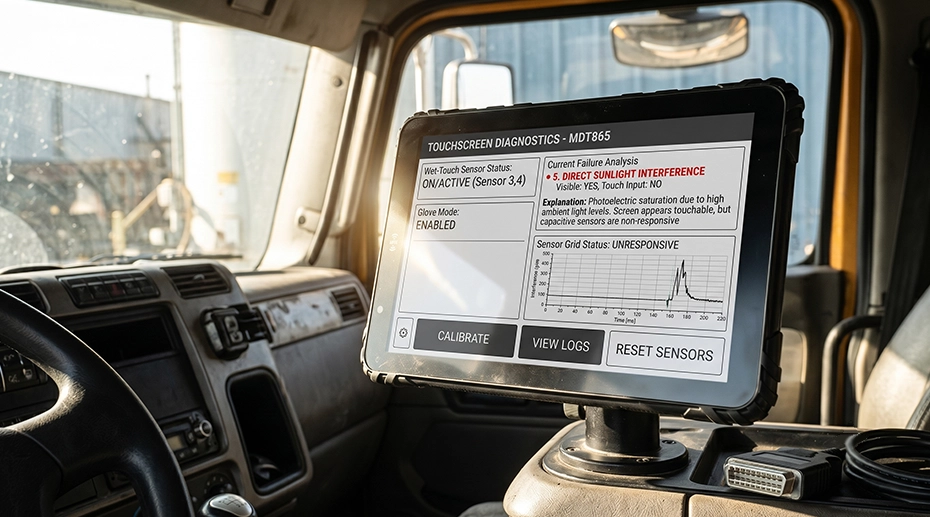
This is the most frustrating touchscreen failure mode because everything looks fine. The display is on, the app is running, the screen is readable. But when the driver taps a button, nothing happens — or the wrong button registers. This is caused by infrared (IR) interference from direct sunlight.
Sunlight contains a significant IR component. Some capacitive touch controllers use IR sensors as part of their touch detection algorithm — particularly for proximity sensing and palm rejection. When direct sunlight hits the screen, the IR sensor is flooded with ambient IR, and the touch controller's algorithm becomes unreliable. The controller may register phantom touches where the sun is brightest, or reject real touches as noise. The result: a screen that looks perfect but behaves erratically — missed taps, wrong buttons, or "dead zones" that move with the sun angle.
Hardware Solutions
IR-filtered touch controller or optical stack: An IR-cut filter in the display stack blocks solar IR before it reaches the touch sensor. This is a hardware feature built into the display assembly at manufacturing — it cannot be added aftermarket.
High-brightness display with anti-reflective coating: A 1000-nit or brighter display with anti-reflective (AR) coating reduces the relative intensity of sunlight reflection compared to the display's own output. This doesn't solve IR interference directly, but it means the driver can see the screen clearly without angling it toward the sun — reducing the IR exposure on the touch surface.
Mounting angle optimization: Position the tablet with a slight downward tilt (5-10°) to reduce direct sunlight incidence on the screen. This is a zero-cost mitigation that also improves perceived display brightness by reducing glare. Refer to our fleet tablet installation guide for mounting best practices.
Touchscreen Problem Diagnosis Quick Reference
Frequently Asked Questions
Why does my fleet tablet touchscreen work sometimes but not others?
Intermittent touchscreen behavior is almost always environmental — moisture on the screen from rain or humidity, gloved vs bare hands, or sunlight angle changing throughout the day. The touch controller itself rarely fails intermittently. Track when the problem occurs (rainy days, specific times of day, after cleaning) and match it to the causes above.
Can I enable glove mode on a tablet that didn't ship with it?
Usually no. Glove mode requires the touch controller firmware to be configured with higher gain settings — this is a factory-level configuration, not a user-accessible setting. Some Android devices offer a "glove mode" or "touch sensitivity" toggle in settings, but this is a software boost that increases touch detection threshold — it does not change the physical gain of the capacitive sensor. For reliable gloved operation, specify the requirement at procurement.
Is optical bonding worth the cost for fleet tablets?
Yes — for vehicle deployments, optical bonding is one of the most important display specifications. It improves sunlight readability by eliminating internal reflections, increases touch sensitivity by removing the air gap between touch sensor and cover glass, and prevents delamination from thermal cycling. The cost difference between air-gapped and optically bonded displays is repaid within the first year of reliable operation in a vehicle cab.
Do TOPICON MDTs support wet-touch and glove mode operation?
Yes. TOPICON rugged MDTs are factory-configured with wet-touch optimized touch controllers and glove-compatible sensitivity profiles. All models feature optically bonded displays rated for the full -20°C to 60°C operating range, with MIL-STD-810G thermal shock certification. Contact our engineering team for touchscreen specifications for your deployment environment →
Dealing with Touchscreen Problems in Your Fleet?
TOPICON rugged MDTs feature wet-touch and glove-compatible capacitive screens with optical bonding and MIL-STD-810G thermal shock certification — engineered for reliable touch response in vehicle environments.
Related Troubleshooting & Hardware Resources