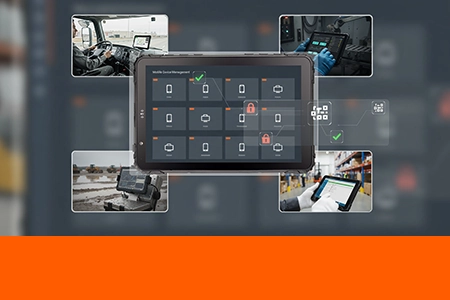
How to Push a Firmware Update to 500 Fleet Tablets Without Touching Any of Them
A system integrator managing 500 in-vehicle tablets deployed across a regional fleet received a critical baseband firmware patch from the chipset vendor. The patch closed a modem vulnerability that could cause devices to drop cellular connectivity after roaming between network towers. The fix had to be deployed within 48 hours. Visiting every vehicle was not possible. Here is the firmware update architecture that delivered the patch to all 500 devices within a single overnight maintenance window.

Table of Contents
Field Observation
Firmware updates that require physical access to each vehicle are the largest hidden cost in fleet device management. The cost is not the update itself — it is the logistics of getting a technician to 500 trucks, many of which are on the road 5 days a week:
Vehicles unavailable during the visit: 1–2 hours
Total fleet downtime for one update cycle: 500+ vehicle-hours
About the Author
TOPICON Hardware Engineering Team
Specialists in fleet device lifecycle management, OTA update architecture, and remote deployment strategies for large-scale vehicle tablet installations across system integrator and fleet operator environments.
The Problem: Firmware Updates at Fleet Scale
A single firmware file is small — tens or hundreds of megabytes. The challenge is not storage or bandwidth. It is orchestration. Five hundred devices, each in a different location, each with a different cellular signal strength, each potentially powered off, each running a different current firmware version. Sending the same file to all 500 devices is straightforward. Ensuring that all 500 devices successfully apply the update — without bricking any of them, without consuming cellular data budgets, and without interrupting drivers mid‑route — is not.
A failed update that bricks a single device is a vehicle out of service. A failed update that bricks 50 devices simultaneously — because the same misconfiguration was pushed to all of them — is a fleet‑wide operational incident. The TOPICON MDM server managing fleet management tablet deployments at scale must include safeguards that prevent mass simultaneous failure while still enabling batch updates that complete within a defined maintenance window.
The Architecture: Four Capabilities That Make 500‑Device OTA Possible
The MDM server handles firmware distribution through four separate mechanisms. None of them alone is sufficient. All four together create a reliable update pipeline that can push a firmware file to 500 devices overnight with zero vehicle visits.
1. Scheduled Update Windows
Firmware is pushed during a defined time window — typically overnight when the vehicle is parked, the driver is off‑duty, and the tablet is idle. The server does not download or install firmware outside this window. A truck on a night route receives the update the following morning when it returns to the depot.
2. WiFi‑Enforced Download
The server can restrict firmware file downloads to WiFi only. The tablet downloads the update package when it connects to the depot WiFi network, not over cellular. This preserves mobile data for operational communication — dispatch, GPS tracking, delivery confirmation — and prevents a 500‑device simultaneous cellular download from saturating the fleet's shared data pool.
3. Wake‑From‑Power‑Off Upgrade
A tablet that is completely powered off — not sleeping, but shut down — can be woken by the MDM server to receive and apply a firmware update, then returned to its off state. This is critical for vehicles that park for days or weeks between assignments. The update does not require the vehicle to be powered on or the tablet to be in active use.
4. Automatic Version Staging
A device running firmware version 1.0 that needs to reach version 3.0 may require an intermediate step through version 2.0. The server detects the current version on each device and stages the update path automatically — downloading and applying intermediate versions in sequence without administrator intervention. No manual check of each device's current firmware level is needed before pushing the update.
The Actual Update Flow: What Happens Over 8 Hours
Here is the sequence that updated all 500 tablets in the system integrator's deployment:
16:00 — Administrator uploads firmware package to MDM server. The server verifies file integrity and matches it against supported device models. Devices running incompatible hardware are automatically excluded from the update list.
16:15 — Update window configured. Start time: 01:00. End time: 05:00. WiFi‑only download enabled. Wake‑from‑off enabled.
01:00 — Server begins contacting devices. Devices currently online and connected to WiFi begin downloading. Devices offline or on cellular are queued. Devices in powered‑off state receive a wake signal.
01:00–03:00 — Downloads complete. Each device verifies the firmware package checksum. A mismatch triggers an automatic re‑download. Three consecutive mismatches flag the device for administrator review — the server does not attempt to apply a corrupt package.
03:00–05:00 — Firmware application. Devices apply the update and reboot. The server monitors each device's reconnection. A device that does not report back within 30 minutes of its expected completion time is flagged.
05:00 — Administrator reviews dashboard. 497 devices updated successfully. 2 devices flagged for review — both were in underground parking with no WiFi and no cellular signal. 1 device failed checksum verification three times — flagged for physical inspection.
06:00 — Drivers begin shifts. Updated devices are ready. The two flagged devices will receive the update the following night when they return to WiFi coverage. The failed device is scheduled for depot technician inspection.
This flow required no driver interaction. No technician visited any vehicle. The entire update cycle consumed approximately 4 hours of server time and 15 minutes of administrator time to review the dashboard at completion. The same update performed manually would have required scheduling 500 vehicles for depot visits — a process measured in weeks, not hours.
Single Point of Failure
An unpatched firmware vulnerability on a fleet tablet is a single point of failure that affects every vehicle simultaneously. When the modem firmware defect that triggered this update was discovered, the fleet had 500 devices with a known vulnerability that could disconnect them from the cellular network — disabling ELD logging, dispatch communication, and GPS tracking. The vulnerability existed on every device. The patch had to reach every device. A manual update process would have left vehicles exposed for weeks while technicians worked through the fleet. An overnight OTA push closed the vulnerability across the entire fleet in a single maintenance window.
Frequently Asked Questions
What happens if a tablet loses power or connectivity during an OTA update?
The firmware package is verified via checksum before application begins. If the download is interrupted, the server retries automatically during the next update window. The device does not attempt to apply a partial or corrupted package. If power is lost during the application phase — after verification but before completion — the device boots into a recovery partition and re‑establishes contact with the MDM server. The server detects the incomplete update and reschedules it. This is standard Android A/B partition design, not a proprietary recovery mechanism.
Can different device models receive the same firmware update?
No. The MDM server identifies each device by its hardware model before pushing firmware. A firmware package built for one model will not be delivered to a different model. The server maintains a compatibility matrix — each firmware version is mapped to the specific device models and hardware revisions it supports. Administrators cannot accidentally push an incompatible firmware to a device.
How much cellular data does a firmware update consume?
Firmware packages vary by scope, typically between 50MB and 500MB. The WiFi‑enforced download setting prevents any of this data from consuming cellular plan allocation. For fleets operating in areas without depot WiFi, the server supports download throttling — limiting the cellular data rate during firmware transfers so operational communication is not impacted. The firmware download happens in the background at low priority, not as a foreground data transfer.
Does the MDM server require any on‑site infrastructure for OTA updates?
No. The TOPICON MDM server is hosted and maintained by TOPICON — no on‑premises servers, no IT infrastructure required. The administrator accesses the MDM console through a standard web browser. Firmware packages are uploaded to the server and distributed from there. The entire OTA update infrastructure is included with the hardware platform at no additional subscription cost.
Managing Firmware Updates Across Your Fleet? The OTA Architecture Is the Difference Between Hours and Weeks.
Scheduled update windows, WiFi‑enforced download, wake‑from‑off upgrade, and automatic version staging — four mechanisms that together push firmware to hundreds of devices overnight with zero vehicle visits. Built into the TOPICON MDM server, hosted on our infrastructure, accessed through your browser.